
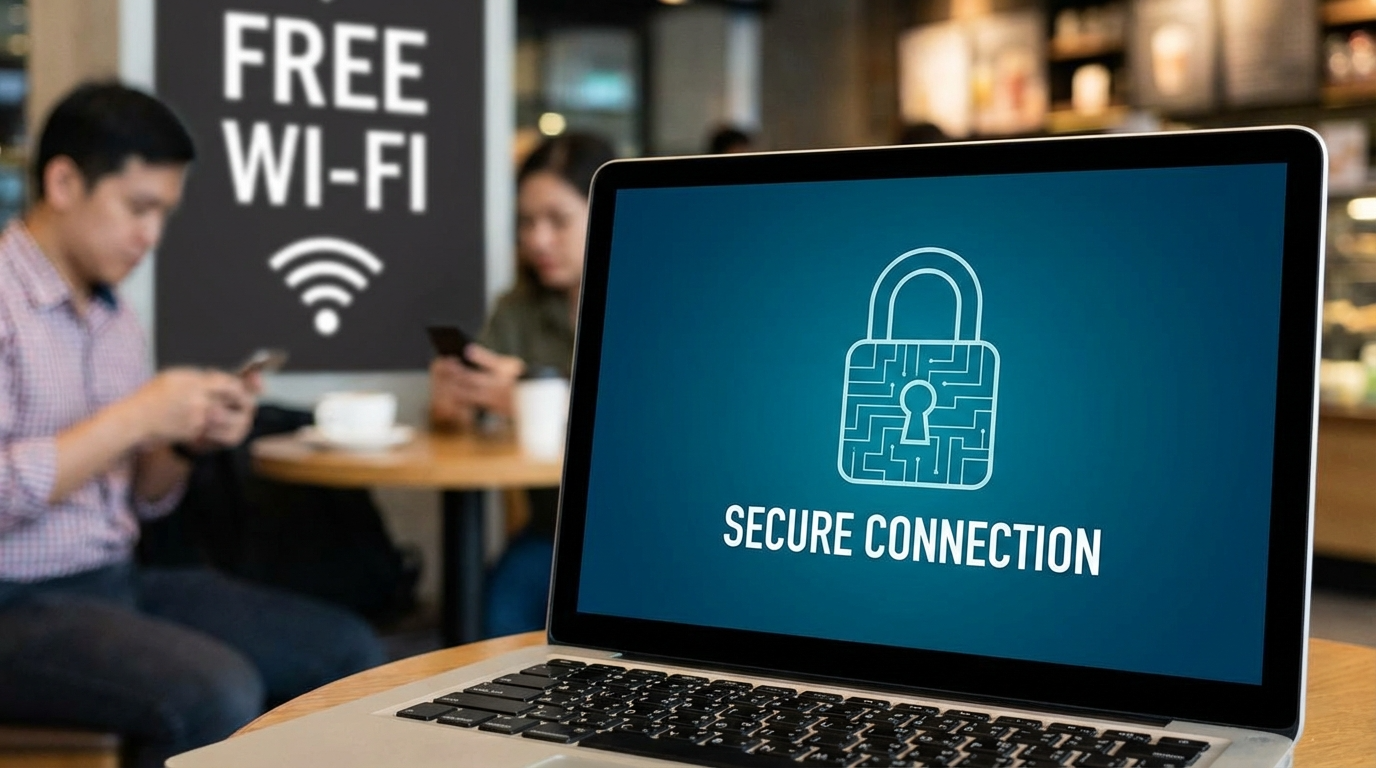
In an age where coffee shops, airports, and even parks offer free internet, using public Wi-Fi feels like second nature. But while it’s convenient, it can also be a digital trap for hackers looking to steal personal data. If your family frequently connects to public hotspots, understanding these public Wi-Fi safety tips could be the difference between safety and exposure. Let’s explore how to stay protected no matter where you log in.
Why Public Wi-Fi Is a Double-Edged Sword
Free Wi-Fi feels like a gift, but it often comes with hidden risks. Public networks are typically unencrypted, which means anyone connected to the same network could intercept your data. Hackers can spy on your online activity, steal login credentials, or even inject malware into your device.
When your child connects their tablet at the mall or you check emails at an airport, your family’s data could be vulnerable. Knowing the safety tips for public Wi-Fi helps you navigate these dangers without giving up convenience.
Use a VPN for Complete Protection
A VPN (Virtual Private Network) is the single most effective way to secure your connection. It encrypts your internet traffic, turning your online activity into unreadable code for hackers. Think of it like a secure tunnel that hides your family’s data as it travels across the internet.
Even if a cybercriminal tries to intercept your connection, they’ll only see scrambled information. Premium VPNs also offer features like malware blocking, automatic kill switches, and multi-device coverage—perfect for family protection.
Some of the most reliable VPNs include NordVPN, ExpressVPN, and Surfshark, all of which support multiple devices under one plan. Using a VPN every time you connect to public Wi-Fi should become a family habit, just like locking your front door.
Avoid Accessing Sensitive Accounts in Public
Here’s a golden rule: never log into your banking app, email, or work accounts while on public Wi-Fi. Cybercriminals often monitor unsecured networks for login credentials. It’s like shouting your password across a crowded room—someone might be listening.
If it’s absolutely necessary to access sensitive data, ensure your VPN is active, and the website uses HTTPS. Always look for the small padlock symbol in your browser before entering personal details.
Turn Off Automatic Connections
Many devices automatically connect to known networks for convenience. While that’s handy at home, it’s dangerous in public spaces. Hackers can create “evil twin” networks with similar names (like “Free_Cafe_WiFi”) to trick users into connecting.
To prevent this, disable auto-connect features in your phone or laptop settings. Always manually select a trusted network, and confirm with staff if you’re unsure which Wi-Fi is legitimate.
Enable Two-Factor Authentication (2FA)
Even with precautions, passwords can still be compromised. That’s why enabling two-factor authentication (2FA) adds a crucial extra layer of protection. With 2FA, even if someone steals your password, they still need a second code—usually sent to your phone—to access your account.
Encourage your family to enable 2FA on key accounts like Google, Apple, banking apps, and social media. It’s quick to set up and can stop a hacker in their tracks.
Forget Networks You No Longer Use
Over time, your devices collect a list of Wi-Fi networks you’ve connected to. Each one poses a potential risk if it’s later spoofed or compromised. Regularly reviewing and removing unused networks is an overlooked yet essential Wi-Fi safety tip.
On most devices, you can find this under your network or Wi-Fi settings. By clearing old connections, you prevent your device from accidentally reconnecting to suspicious networks.
Keep Devices and Software Updated
Outdated software is like an unlocked window for hackers. Security patches are released regularly to fix vulnerabilities that cybercriminals exploit. Make sure every device—laptops, tablets, and smartphones—is running the latest updates.
Enable automatic updates when possible. This includes not just operating systems but also apps, browsers, and antivirus software. Keeping your family’s devices current drastically reduces your exposure to known threats.
Use Firewalls and Antivirus Protection
A firewall acts as your device’s first line of defense, filtering incoming traffic and blocking suspicious activity. Most modern devices include built-in firewalls—just make sure they’re turned on. Combine this with reputable antivirus software that detects and removes malware in real time.
Encourage every family member to keep their antivirus programs updated. Free versions are good, but premium ones often include features like web protection and identity monitoring, which are invaluable for family safety.
Verify the Network Name Before Connecting
One of the oldest tricks in the hacker’s playbook is creating fake Wi-Fi hotspots that mimic legitimate ones. For instance, you might see both “Starbucks_WiFi” and “Starbucks-FreeWiFi.” Connect to the wrong one, and your data could be funneled straight to an attacker.
Before joining any public network, double-check the exact name with a staff member or posted signage. This simple step can save you from falling into a cyber trap.
Use Mobile Data for Sensitive Tasks
Sometimes the safest move is to skip Wi-Fi altogether. If you need to make an online purchase or access your bank, switch to your mobile data instead. Cellular networks are generally more secure than public Wi-Fi because they use strong encryption and are harder to intercept.
Encourage your family members to make this a routine: Wi-Fi for entertainment, mobile data for security-sensitive tasks.
Disable File Sharing and AirDrop
Public Wi-Fi makes it easy for others on the same network to detect shared folders or nearby devices. If file sharing, Bluetooth, or AirDrop is turned on, strangers might be able to send or access files without your consent.
Before connecting, disable sharing options in your system settings. Only turn them back on when you’re on a private network at home. Teaching kids and teens this step helps protect their devices from unwanted access.
Use HTTPS Everywhere
When browsing the web, always prefer websites that begin with HTTPS—not just HTTP. The “S” stands for secure, meaning the connection is encrypted between your browser and the website. Most browsers show a small padlock icon next to secure sites.
You can also install browser extensions like HTTPS Everywhere to force secure connections whenever possible. It’s a simple, passive way to boost online safety across every device in your household.
Monitor Your Family’s Devices Regularly
Staying safe isn’t a one-time setup—it’s an ongoing habit. Make it a monthly routine to review your family’s devices for unusual activity, unfamiliar apps, or strange pop-ups. These can be signs of malware or unauthorized access.
Explain to kids and less tech-savvy relatives why it’s important. By turning cybersecurity into a family discussion, everyone becomes more aware and proactive about safety.
Educate Your Family About Cyber Hygiene
No tool can replace awareness. Take time to teach your family what to watch out for—suspicious links, fake login pages, and phishing emails are common gateways to bigger problems. Use real-world examples, or even YouTube videos, to show how easily hackers can mimic legitimate sites.
Encourage curiosity: if something feels off, don’t click. Report and verify instead. Building good habits early creates lifelong digital responsibility.
When in Doubt, Disconnect
If you ever notice a weak connection, strange behavior on your device, or unexpected network prompts, disconnect immediately. Then switch to mobile data and run a quick security scan. It’s always better to be cautious than to risk exposure.
You can also toggle on “airplane mode” when you’re not actively browsing. This simple action prevents your device from maintaining a risky connection longer than necessary.
The Bottom Line on Public Wi-Fi Safety
Staying connected shouldn’t mean staying vulnerable. Public Wi-Fi will always carry risks, but with awareness and smart habits, your family can use it safely and confidently. By applying these public Wi-Fi safety tips, you create a protective barrier around your family’s data—whether you’re grabbing coffee, studying in a library, or catching a flight.
Remember: every click and connection is a choice. Choose safety, use your VPN, and keep your family’s digital world secure.
FAQ
1. Why is public Wi-Fi unsafe for families?
Public Wi-Fi networks are often unencrypted, making it easy for hackers to intercept personal data like passwords and messages.
2. Can a VPN really protect my family online?
Yes, a VPN encrypts all online activity, preventing hackers or third parties from seeing your data on public networks.
3. Should I let my kids use public Wi-Fi?
Only with precautions. Ensure they use a VPN, avoid sharing personal details, and stay on trusted websites.
4. How do I know if a Wi-Fi network is fake?
Look for unusual names or multiple versions of the same network. Always confirm with the business or location staff before connecting.
5. What should I do if I suspect a security breach?
Disconnect immediately, change your passwords, run a virus scan, and enable two-factor authentication on all major accounts.